Passwords, lockouts, and reissue
SafeNet eTokens use two passwords. Mixing them up is the most common way customers permanently brick a token.
Protect both eToken passwords. The eToken Password (PIN) unlocks the certificate for signing. The Administrator Password defaults to 48 zeros (000000000000000000000000000000000000000000000000). Store both in a password manager. Too many failed Administrator Password attempts permanently lock the token—DigiCert cannot recover it, and you must buy a new eToken. See Passwords, lockouts, and reissue.
The two passwords
| Password | What it is | Default | If you lose it |
|---|---|---|---|
| eToken Password (PIN) | Unlocks certificates for signing | The PIN you set during Hardware Certificate Installer | Admin can reset it, or reissue and re-install the certificate |
| Administrator Password | Resets a forgotten PIN; unlocks after failed PIN attempts | Factory default: 48 zeros (000000000000000000000000000000000000000000000000) |
Unrecoverable. DigiCert cannot override it. Buy a new eToken. |
There is also a manufacturer PUK (often 000000). DigiCert’s install flow does not use it.
Do not change the Administrator Password unless you will immediately store the new value in a password manager. Too many failed Administrator Password attempts permanently disable the token.
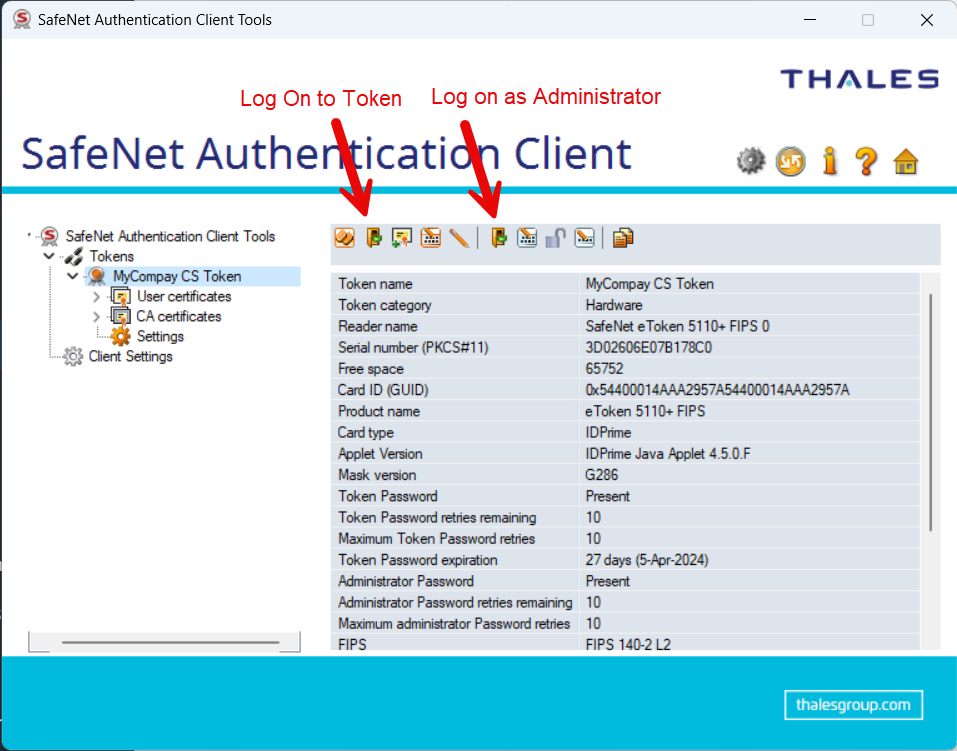
In SafeNet Advanced View, you can Log On to Token (user / PIN) or Log on as Administrator.
Reset a forgotten eToken Password
If you still have the factory (or known) Administrator Password:
- Open SafeNet Authentication Client → Advanced View (gear).
- Select the token → Log on as Administrator → enter the Administrator Password (48 zeros if you never changed it).
- Set a new eToken Password.
- Confirm success and store the new PIN.
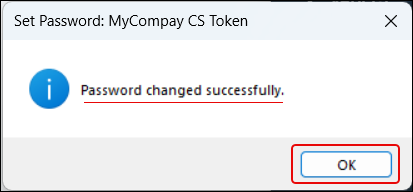
That is the fastest recovery. You do not need to reissue.
Reissue and re-install
Reissue when:
- The Administrator Password is lost and you cannot reset the PIN
- The initialization code expired (“unexpected error” in the Hardware Certificate Installer)
- You intentionally wipe the token and start over
- You are inside a multi-year term and the current certificate is approaching the 459-day cap
-
Log in to CertCommand, open the order, and choose Order Actions → Reissue Certificate. If the option is greyed out, contact support.
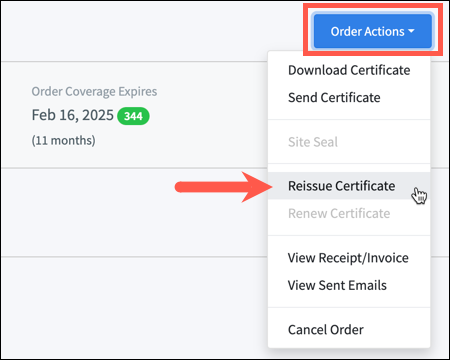
- Choose use existing token (unless you are ordering a replacement eToken).
- After reissue, copy the new initialization code and run the Hardware Certificate Installer again (re-initialize if you are wiping the token).
Expired or invalid initialization code
Error: The Initialization Code was invalid, has already been used, or has expired — or a generic An unexpected error has occurred.
Fix: Reissue (or force reissue if Install certificate is missing), then copy the new initialization code and install again. Do not reuse an old code.
SafeNet Token JC 0
If the token name is SafeNet Token JC 0, shows a warning icon, and Rename / Change Password / Unlock are all disabled, the eToken is permanently locked (usually too many failed Administrator Password attempts).
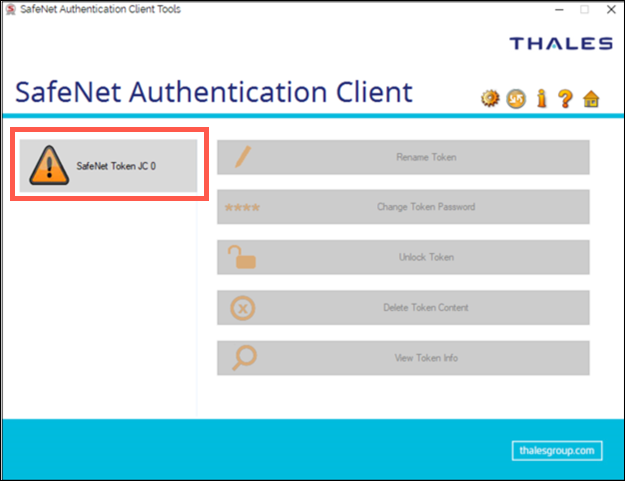
You cannot reset this device. Contact GeoCerts support to order a new eToken, then reissue the certificate onto the replacement.
Lost Administrator Password
If you changed the factory 48-zero Administrator Password and then lost it, the token is unrecoverable even if you still remember the eToken PIN for signing—until you hit a lockout you cannot clear. Treat it as needing a replacement token before you get stuck.
Contact GeoCerts support to order a new eToken.
Related topics
- Install the certificate on the eToken
- Order a code signing certificate — multi-year reissue
- Troubleshooting & FAQs