Order a code signing certificate
Place DigiCert OV or EV code signing orders in CertCommand. The steps below assume you already chose a provisioning method.
459-day maximum validity. Newly issued public code signing certificates cannot exceed 459 days (DigiCert’s implementation of the CA/Browser Forum’s 460-day cap). Multi-year product terms may still be sold, but you must reissue during the term. See Change Log — 459-day CS validity.
Order in CertCommand
- Log in to CertCommand and click New Certificate.
- Choose OV Code Signing or EV Code Signing.
- Select the provisioning method:
- DigiCert-provided hardware token — no CSR; DigiCert ships an eToken.
- KeyLocker — no CSR; DigiCert provisions the key in KeyLocker.
- Install on HSM (Azure Key Vault, AWS CloudHSM, or other approved HSM) — paste the CSR generated on that HSM.
- Complete organization details (and EV identity information if applicable).
- Submit the order and watch email for validation requests.
HSM attestation. For HSM provisioning, DigiCert sends an agreement email confirming the private key was generated on a device certified to FIPS 140-2 Level 2, Common Criteria EAL 4+, or equivalent. DigiCert cannot issue until the requester responds.
Validation
OV requires organization validation. EV adds individual identity verification and typically takes additional business days.
Reuse periods for organization validation can change with CA/Browser Forum rules. If validation is expired, DigiCert must revalidate before issuing or reissuing. See the Change Log for current reuse timelines.
After issuance
| Provisioning | What you do next |
|---|---|
| USB eToken | When the token arrives, confirm receipt in CertCommand, copy the initialization code, and install the certificate on the eToken. |
| KeyLocker | Access the certificate in DigiCert ONE / KeyLocker. See DigiCert KeyLocker. |
| Azure Key Vault | Download the certificate (prefer PKCS #7 / .p7b) and merge it into the same Key Vault cert object. |
| AWS CloudHSM | Download PEM or P7B and bind it to the CloudHSM key that generated the CSR. |
Reissue and multi-year terms
Multi-year product terms may still be sold, but each issued certificate is capped near 460 days. Plan a reissue before the current certificate expires—not a brand-new order—unless you are changing organization details or provisioning method.
To reissue:
- In CertCommand, open the order.
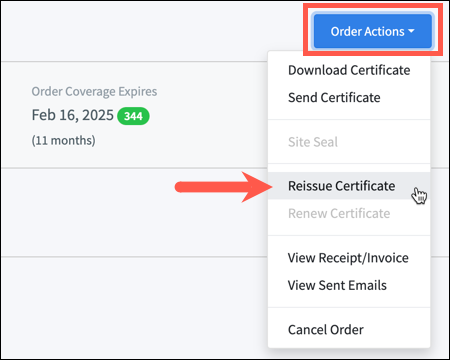
- Choose Order Actions → Reissue Certificate.
- Keep the same provisioning method unless you intend to generate a new key (new token init, new HSM CSR, or new KeyLocker key).
- If Reissue Certificate is greyed out, contact GeoCerts support.
For a locked or wiped eToken, reissue and then re-install. See Passwords, lockouts, and reissue.