Email verification
With Email Verification, the CA sends a message to approved addresses for the domain. Someone who receives that mail opens the link and confirms control. Use this method when you can read mail at a constructed administrative address (or you have set up Email to DNS TXT contact).
On the certificate request or reissue, under Prove control over your domain, choose Email Verification.
The CA cannot send the Domain Control Validation (DCV) email to your GeoCerts account address. DigiCert or Sectigo is not allowed to use the username, billing, or “email on file” for your CertCommand login. Industry rules require the message to go to an address that proves control of the domain on the certificate—not control of a GeoCerts account. Anyone could open an account with any mailbox; that would not prove they control example.com.
The CA can send DCV mail only to the constructed addresses below, or to a mailbox you publish in DNS with Email to DNS TXT contact. If you want the link at jane@yourcompany.com, use that DNS contact method (or forward admin@example.com to Jane).
Where the email goes
The CA sends DCV mail to constructed addresses built from the domain on the order:
admin@administrator@hostmaster@webmaster@postmaster@
Example: on an order for widgets.example.com, the CA can send to admin@widgets.example.com, webmaster@widgets.example.com, and the other constructed mailboxes for that name.
See where the emails were sent
On the pending order, click Manage to open the DCV options modal. Under Sent to: you will see every address the CA used for that domain.
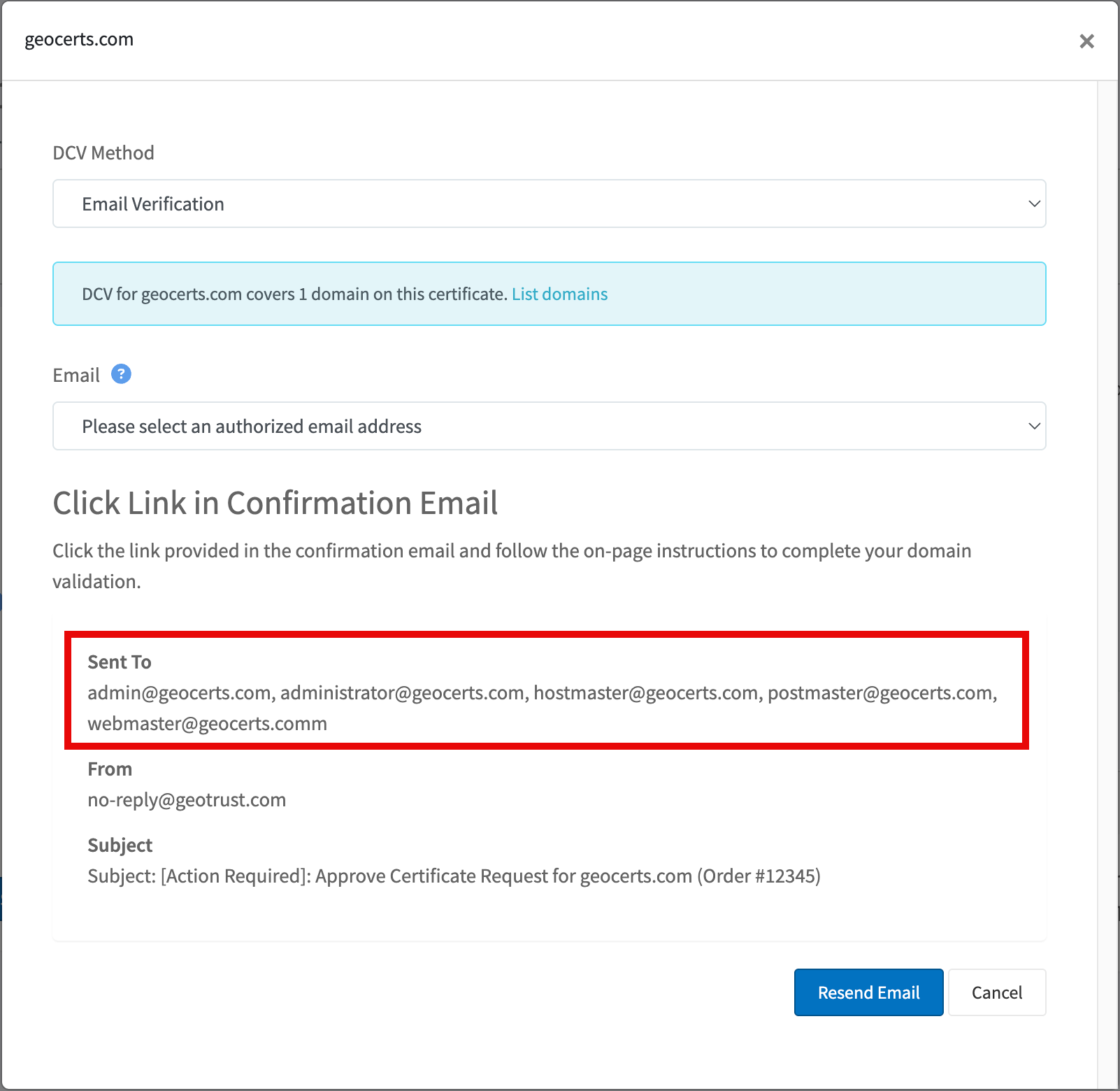
That list is the only destinations for this method—not your CertCommand username. If a mailbox you need is missing, set up Email to DNS TXT contact and resend, or switch to a DNS method.
An alias that forwards to a mailbox you actually read is fine. hostmaster@example.com → jane@example.com still works as long as you can open the approval link.
If you cannot receive any of those constructed addresses, publish a contact mailbox in DNS instead: Email to DNS TXT contact.
WHOIS email is not a reliable DCV source. DigiCert stopped using WHOIS-based DCV email on May 8, 2025. Do not wait for mail at a registrant, admin, or tech contact from WHOIS. Use constructed addresses or Email to DNS TXT contact.
Resend the emails
On the pending order, click Manage to open the DCV options modal (the same panel that shows Sent to:). Use Resend Email if you did not receive the message. Check spam and any forwarding rules. The sending address is typically in the digitalcertvalidation.com or geotrust.com domain—allowlist that if your mail gateway filters it.
After you approve
When you click the link in the message, that domain is marked approved. Repeat for every name on the order that still needs DCV.
Check is optional. After you publish a DNS record or HTTP file, CertCommand and the CA retry DCV automatically. For email, approval happens when you follow the link—not when you click Check. You can change the DCV method on a pending domain until that name is approved.
Related topics
- Email to DNS TXT contact
- Persistent DNS TXT — often easier if you have DNS access
- Troubleshooting & FAQs