Install SafeNet Authentication Client
SafeNet Authentication Client (Thales) lets the operating system talk to the USB eToken. Install it on every computer where you will plug in the token to sign—not only on the Windows PC used to load the certificate.
Download the current installer from DigiCert (version numbers change):
Download SafeNet Authentication Client
Use the latest build that matches your OS. Older tokens or OS versions may need a listed legacy build on that same DigiCert page.
Windows
Most signing and all certificate installs with the DigiCert Hardware Certificate Installer happen on Windows.
- From the DigiCert download page, get SafeNet Authentication Client for Windows (64-bit
.msion modern PCs; 32-bit only if you still run a 32-bit OS). -
Save the
.msiand run it.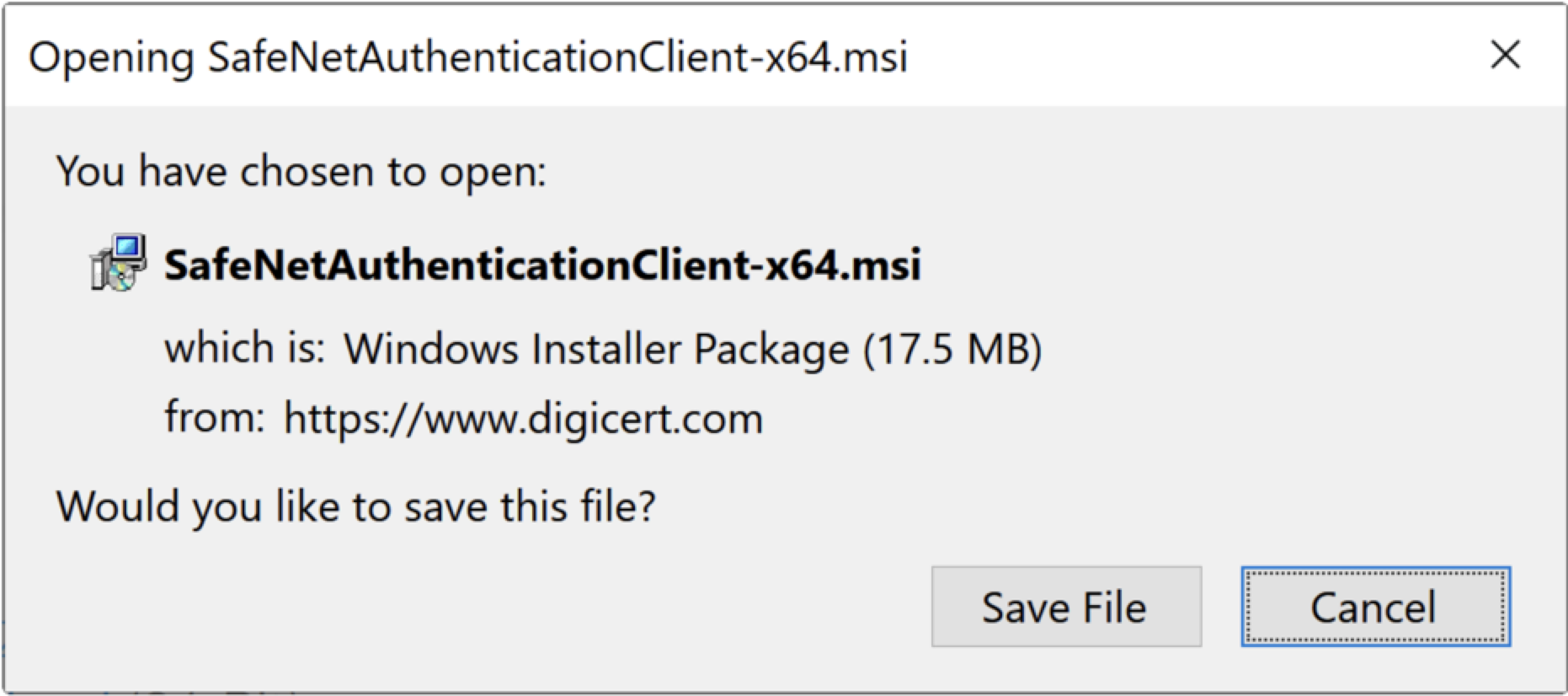
-
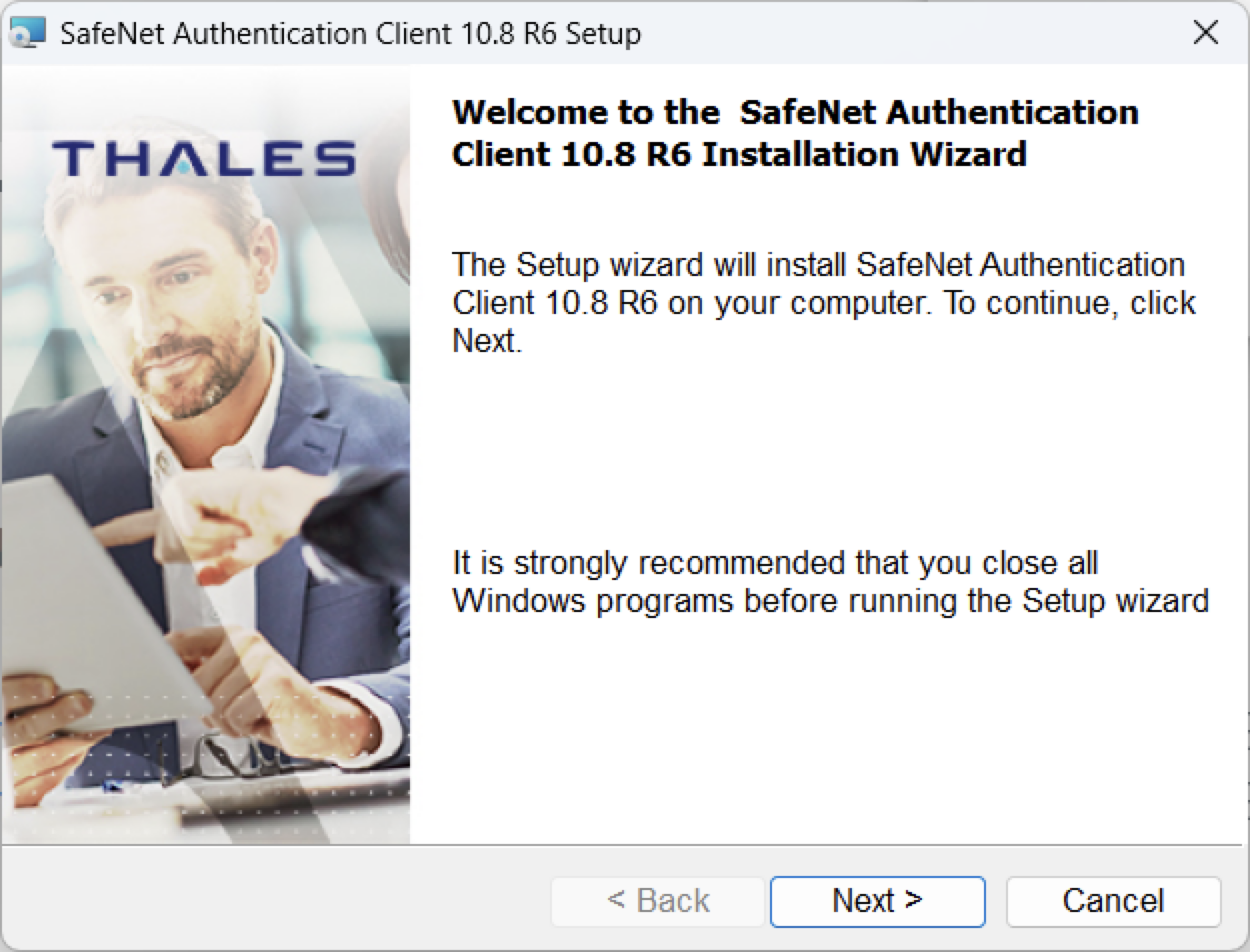
In the setup wizard, click Next, accept the license, keep Typical install, and finish.
-
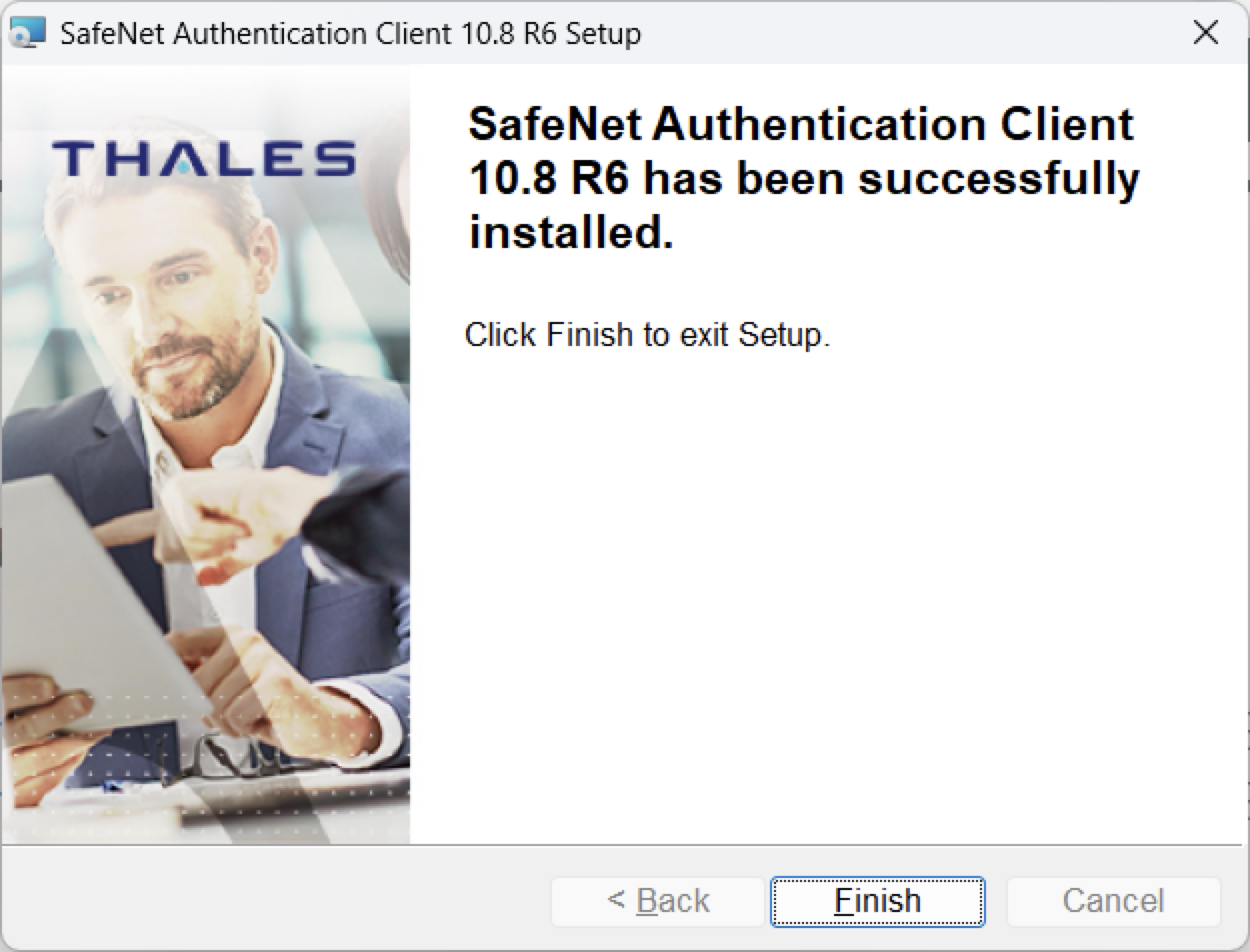
When setup reports success, click Finish.
Confirm on Windows
- Start menu: SafeNet → SafeNet Authentication Client
- System tray: SafeNet icon (right-click to manage the token)
Default install path: C:\Program Files\SafeNet\Authentication\
macOS
- Download the macOS
.dmgfrom the DigiCert page. -
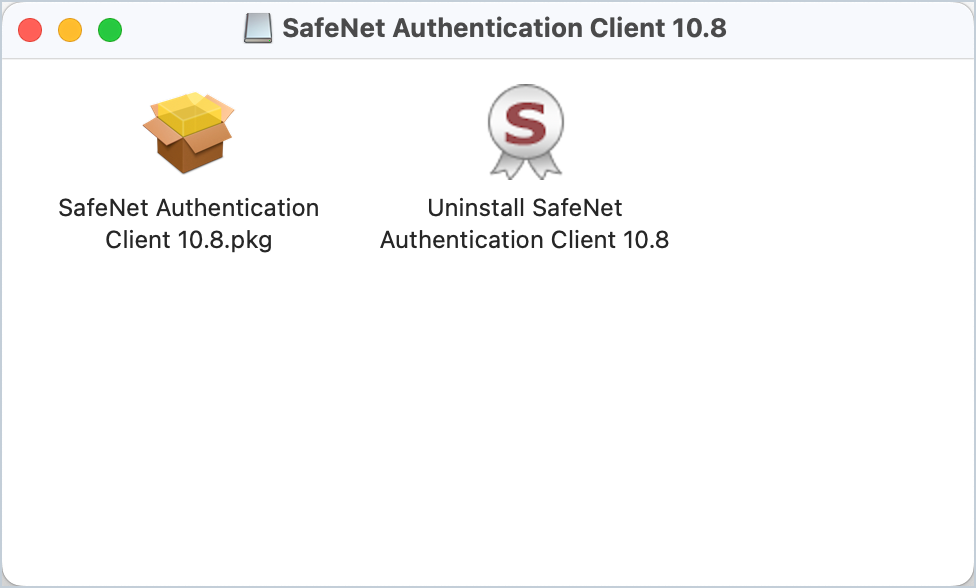
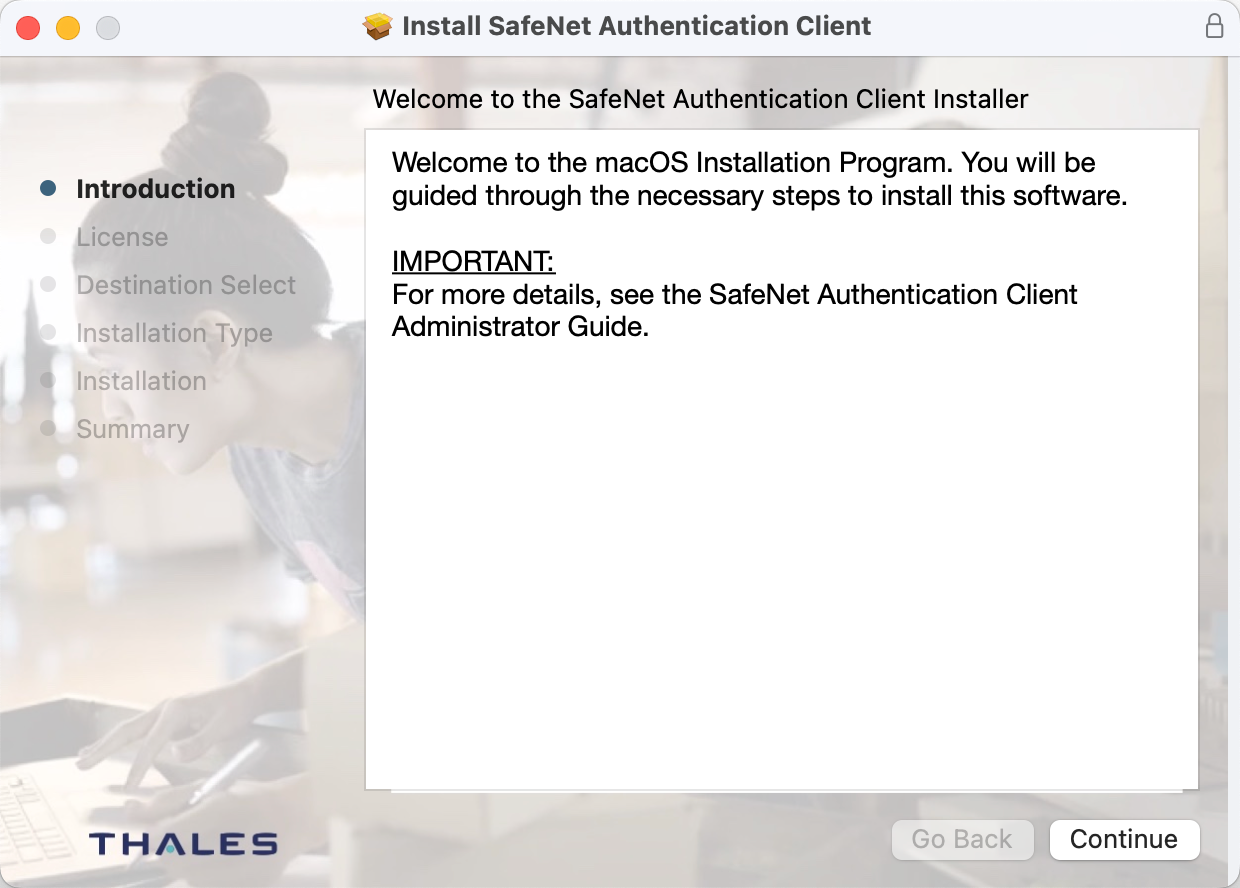
Open the disk image and run SafeNet Authentication Client … .pkg.
-
Follow the installer (Introduction → License → Install). You may be asked for your Mac administrator password.
Confirm on macOS
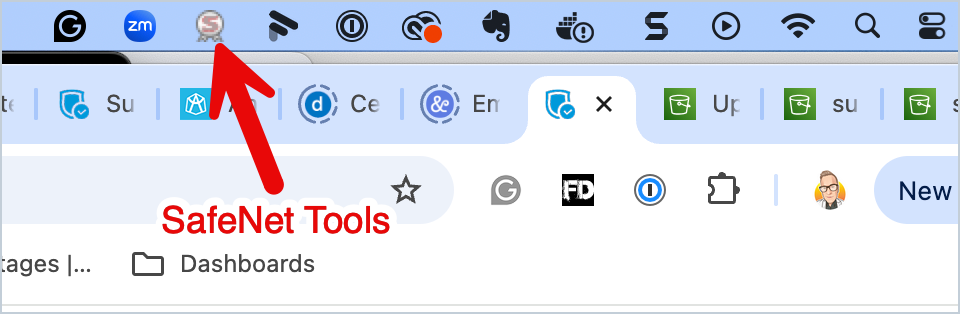
After install, the SafeNet icon appears in the menu bar (top right). Click it to view the token, manage certificates, or eject the USB device.
Linux
- Download the Linux package from the DigiCert page (
.zipcontaining distro packages). - Install using your distribution’s package manager per the archive’s README.
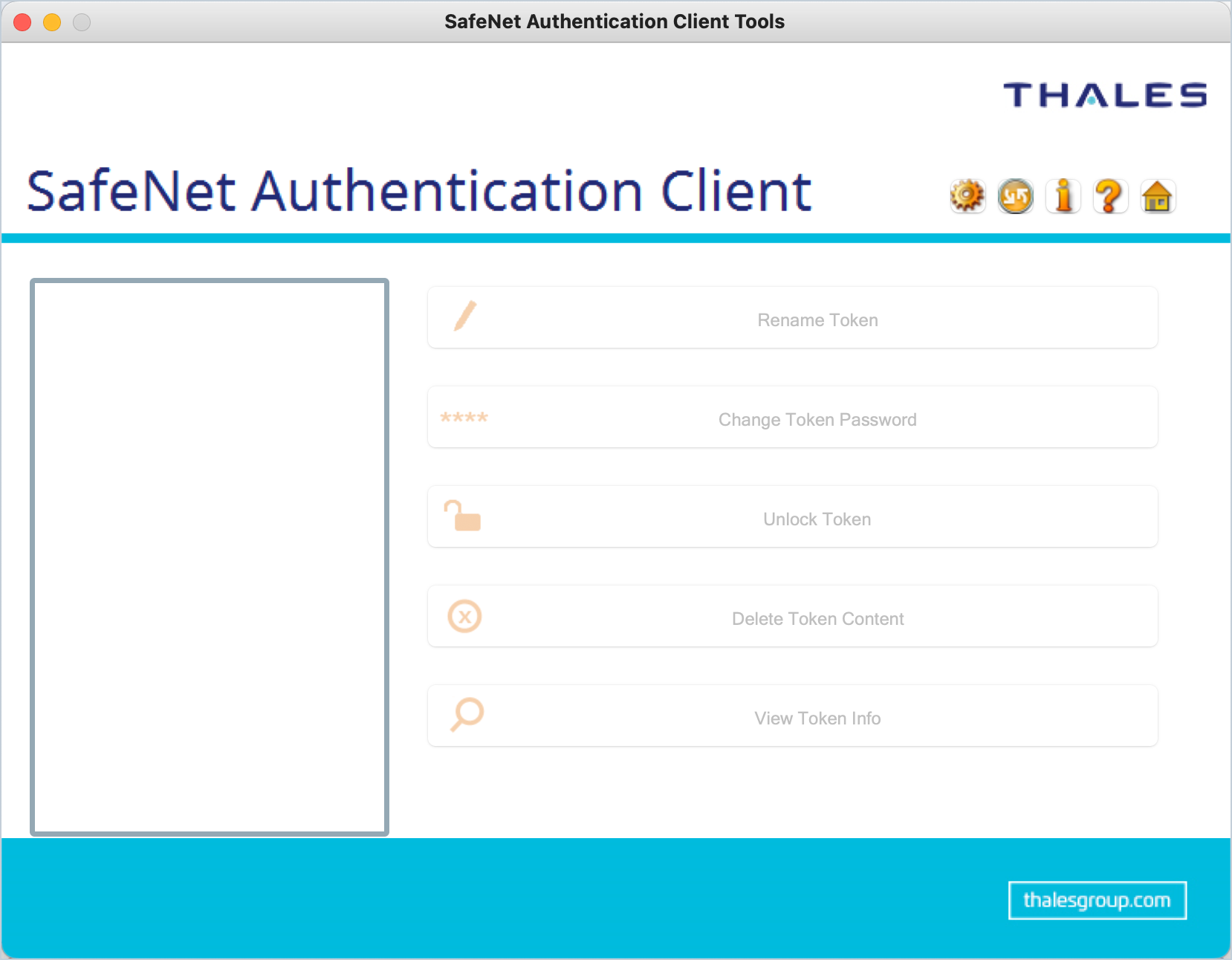
- Open SafeNet Authentication Client Tools and confirm the token appears when inserted.
Supported distros change with each SafeNet release—check the DigiCert download page for the current list (RHEL, Ubuntu, Debian, Fedora, and similar).
Next step
With SafeNet installed on the Windows PC you will use for install, load the certificate:
Install the certificate on the eToken »
Related topics
- USB eToken
- DigiCert: How to download SafeNet Authentication Client
- DigiCert: Install SafeNet on Windows