Create an ACME Directory URL
An ACME Directory URL is the foundation of ACME automation with GeoCerts. It defines what can be automated—certificate type (DV or OV), brand (DigiCert or GeoTrust), and prepaid coverage—while generating the External Account Binding (EAB) credentials your ACME client uses to request, reissue, and renew certificates.
You can use the directory URL and EAB credentials with any ACME client that supports EAB. GeoCerts recommends the DigiCert ACME Client, but clients such as Certbot and win-acme also work.
Once created, an ACME Directory URL can be reused across multiple servers, making it easy to standardize automation across your environment.
Acronyms used on this page
| Term | Meaning |
|---|---|
| ACME | Automated Certificate Management Environment — the protocol used to automate certificate issuance and renewal |
| ADU | ACME Directory URL — the endpoint and credential profile you create in CertCommand under Automation > ACME Directory URLs |
| EAB | External Account Binding — Key ID and HMAC credentials that authenticate your ACME client to GeoCerts |
| DCV | Domain Control Validation — proof that you control a domain name (via a DNS-01 or HTTP-01 challenge) |
| DV | Domain Validation — certificate type validated by domain control only |
| OV | Organization Validation — certificate type that also requires a validated organization |
| SAN | Subject Alternative Name — additional hostnames on the same certificate (`--sans` flag) |
Where to create it
- Log in to your GeoCerts CertCommand account.
- Navigate to Automation > ACME Directory URLs.
- Click Create ACME Directory URL.
Required fields
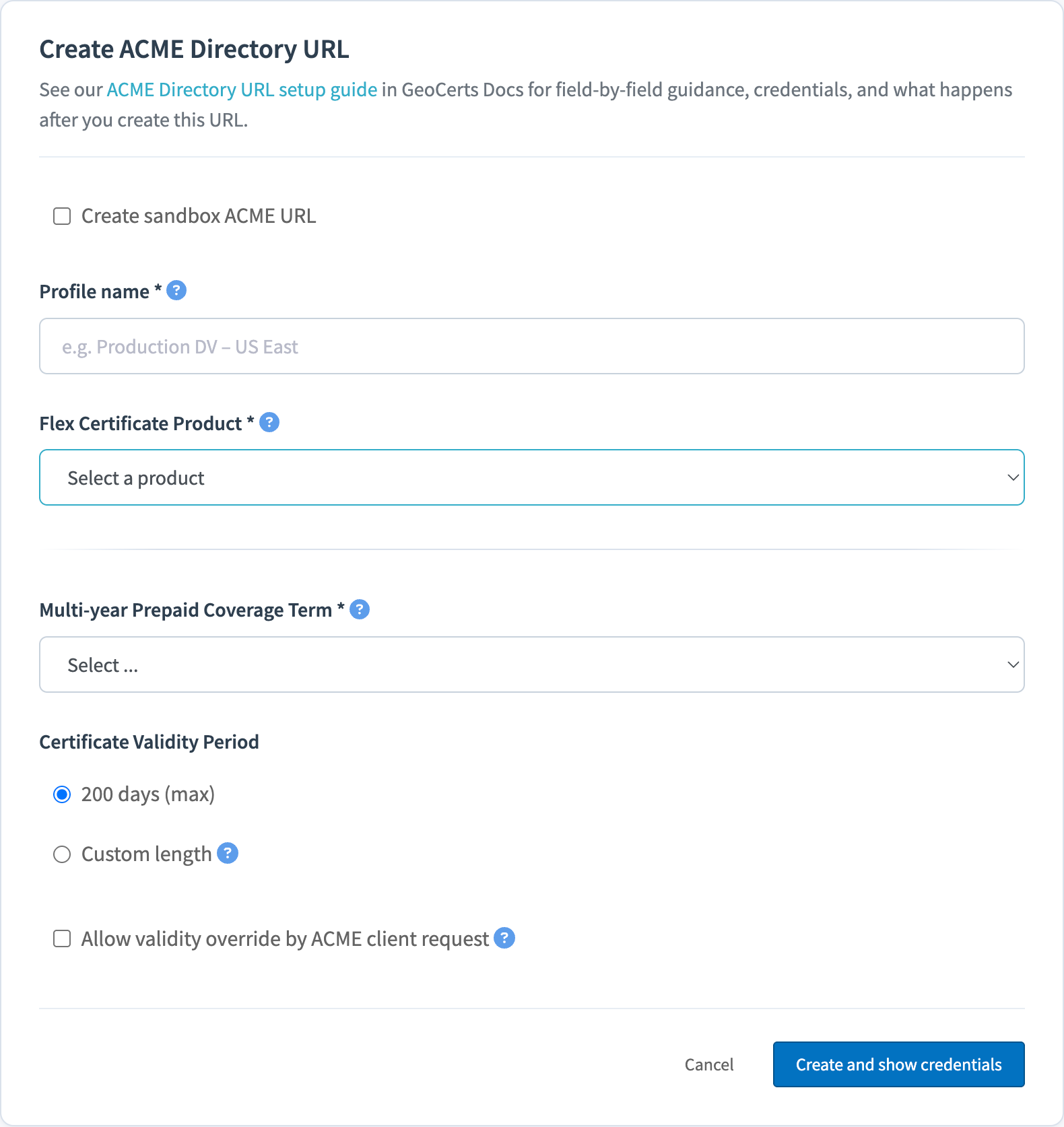
You’ll be prompted to provide the following information:
- Profile Name — A descriptive label for internal reference (for example,
ProjectX-Prod-US-DV-1Yr). - Flex Certificate Product — Select an available DigiCert or GeoTrust DV or OV certificate.
- Organization — OV certificates only. Select the pre-validated organization associated with certificate requests.
- Multi-year Prepaid Coverage Term — Choose 1, 2, or 3 years of prepaid coverage. This controls how much certificate time is purchased, not how long a single certificate is valid.
- Certificate Validity Period — Choose the maximum allowed issuance period or a custom validity length. Individual certificates are issued up to the maximum allowed at the time of issuance.
About Flex Certificate Products: Flex certificates allow you to secure one or more domains (including wildcard domains) under a single certificate. With ACME, you define the exact domain names (SANs) when the certificate is requested—not when the ACME Directory URL is created.
Important: For OV certificates, the organization must already be fully validated and approved for OV issuance. If not, complete organization validation first under Certificates > Organizations > Add Organization. Certificate requests will fail if an unvalidated organization is used.
After completing the fields, click Create and show credentials to generate the ACME Directory URL and EAB credentials.
Sandbox ACME Directory URL
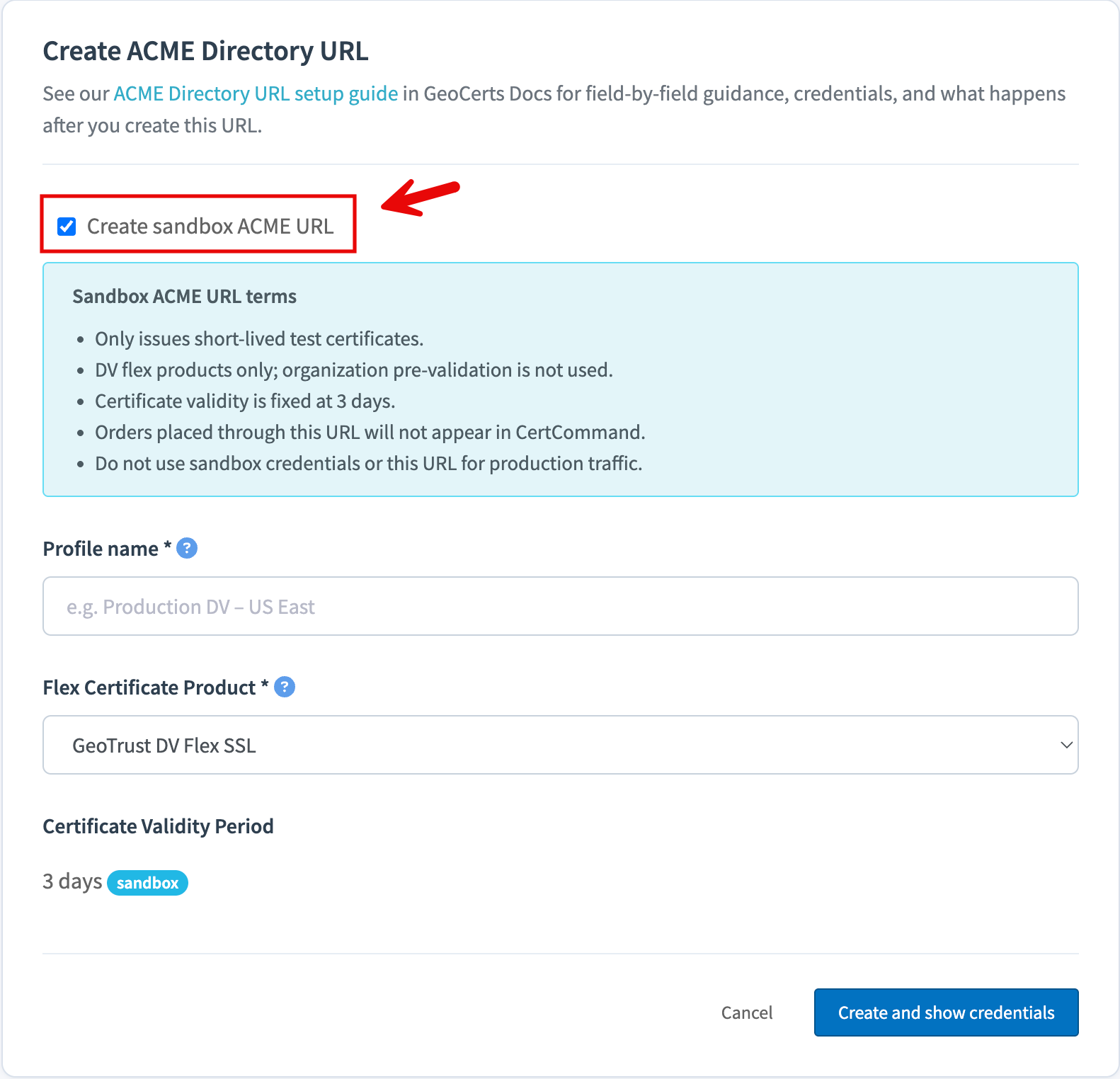
A Sandbox ACME Directory URL routes your ACME requests to the GeoCerts ACME sandbox environment instead of production. It works like a production ACME Directory URL—you receive an ACME Directory URL and EAB credentials—but you are not charged for certificates issued through it.
The ACME directory URL string is the same as production; your sandbox EAB credentials are what direct requests to the sandbox. There is no separate sandbox endpoint to configure.
Protect your production environment. Sandbox certificate requests do not affect production orders or certificates. However, if your ACME client is configured to automatically install certificates, a sandbox test could replace an existing production certificate on your web server. Always use a non-production environment for installation testing, or disable automatic installation when testing against a live server.
Use a sandbox URL to get comfortable with ACME automation without creating real orders or consuming prepaid coverage. This is especially useful for testing the steps that cause the most setup friction:
- EAB authentication — Confirm your client can authenticate with the directory URL and EAB credentials.
- Domain control validation (DCV) — Prove you can complete DNS-01, HTTP-01, or automated DNS validation (for example, with Route 53 credentials) before moving to production.
- Post-issuance deployment — On a non-production web server, confirm your client installs the certificate (for example, on nginx or IIS). For load balancers and similar targets, most ACME clients do not install directly—use the sandbox to confirm issuance, then test your own deploy hook, API upload, or separate automation workflow.
How to create a sandbox URL
Create a sandbox URL the same way as a production URL, with one additional step:
- Follow the steps in Where to create it above.
- On the create form, select Create sandbox ACME URL.
- Complete the remaining fields, then click Create and show credentials.
What you’ll receive
After creating the ACME Directory URL, CertCommand displays:
- ACME Directory URL — The endpoint your ACME client connects to for certificate requests and renewals.
- EAB Key ID — Binds your ACME client to your GeoCerts account.
- EAB HMAC Key — Authenticates the ACME client during enrollment.
These three values are required when configuring your ACME client.
Client option names vary: Different ACME clients use different names—and sometimes formats—for these values. For example, the directory URL is --directory-url in the DigiCert ACME Client, --server in Certbot, and --baseuri in win-acme; the EAB values are --eab-key / --eab-hmac in the DigiCert ACME Client and --eab-kid / --eab-hmac-key in Certbot. The credential block you copy from CertCommand is formatted for the DigiCert ACME Client. For other clients, map each value to that client's equivalent option—see Alternative ACME Clients.
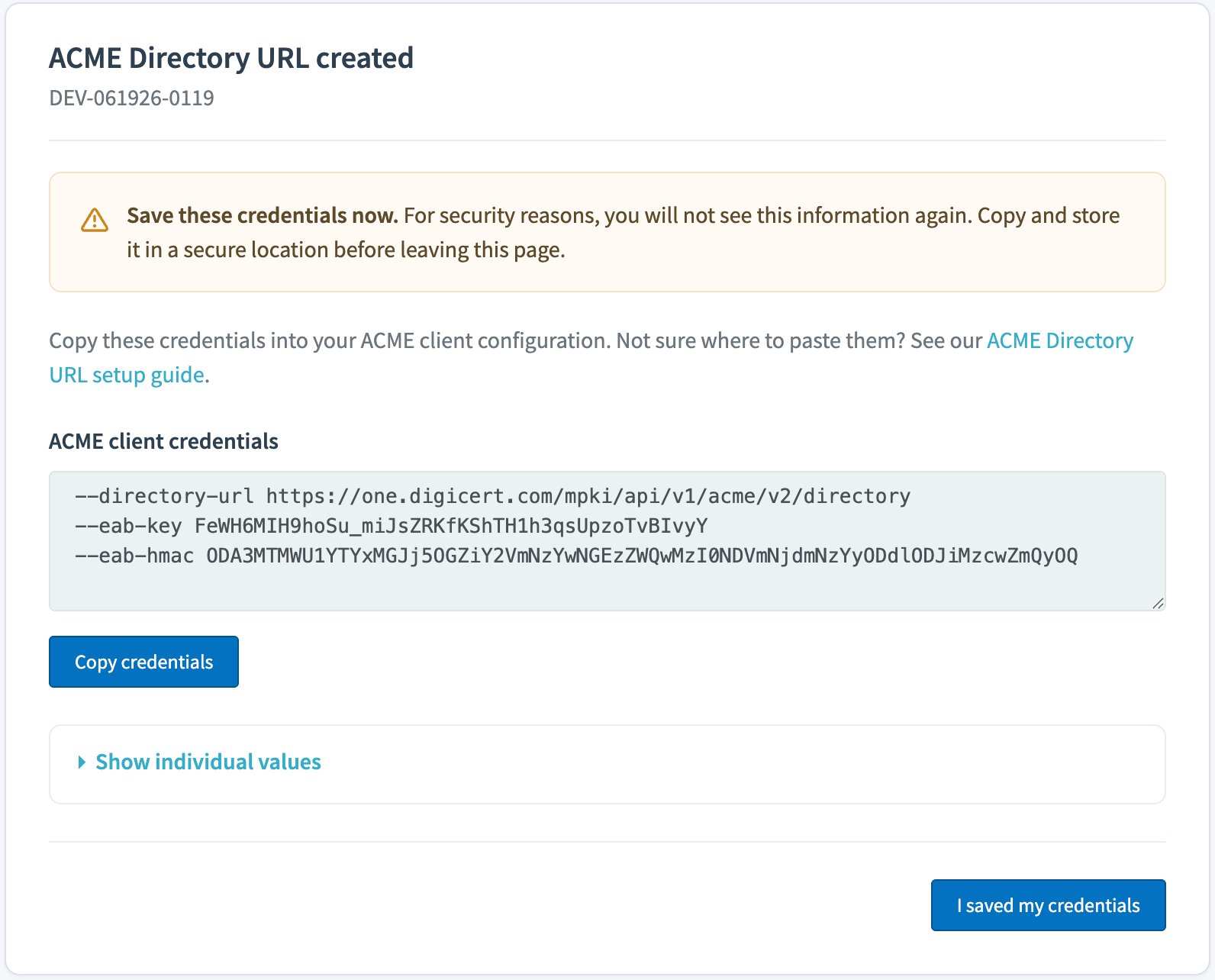
Action: Use the Copy credentials button to copy the full credential set and store it securely. These values are not shown again and cannot be recovered. After you have saved them, click I saved my credentials to close the dialog.
Security note
- Treat ACME credentials as sensitive secrets. Anyone with access can request and renew certificates on your behalf.
- Store the directory URL and EAB credentials in a password manager or secrets vault—such as 1Password, Bitwarden, LastPass, or HashiCorp Vault—rather than in plain text, email, or chat.
- ACME Directory URLs can be revoked at any time from the ACME Directory URLs section of CertCommand.
Next step
Configure your ACME client with the directory URL and EAB credentials you just created. GeoCerts recommends the DigiCert ACME Client, but any EAB-capable client works.
Install the DigiCert ACME Client »
Use an alternative ACME client (Certbot, win-acme) »
Related topics
- Get Started — Full onboarding path
- Production CLI Examples — Production issuance with CLI flags
- Troubleshooting Common Issues — EAB and credential problems