Renewing an IIS 7 SSL Certificate
If you are renewing your GeoTrust SSL certificate running on Microsoft
Internet Information Services (IIS) 7, you will need to perform some simple tasks from
your IIS 7 web server before placing an order to renew your expring
SSL certificatate.
Generate Renewal Certificate Request File (CSR)
- Open the Internet Information Services (IIS) Manager.
From the Start button select Programs >
Administrative Tools > Internet
Information Services Manager.
- In the IIS Manager, select the main server node on the top left under Connections
- In the Features pane (the middle pane), double-click the Server
Certificates option located under the IIS or Security heading
(depending on your current group-by view).
- You will be presented with a list of SSL Server Certificates currently
installed. Select and highlight the expiring certificate that you want to renew.
Check the certificate's Expiry Date to make sure you have selected the correct one.
The certificate's Issued By field should say Equifax or GeoTrust.
- From the Actions pane on the right, select Renew .
From the Renew an existing certificate dialog box choose the second
option, Create a renewal certificate request. Click Next.
- Specify a file name for the renewal certificate request. It doesn't
matter what you call it or where you save it as long as you know where to find
it. You'll need it in the next step. We recommend calling it
certreq.txt.
- Click Finish to complete the certificate request (CSR) wizard.
-
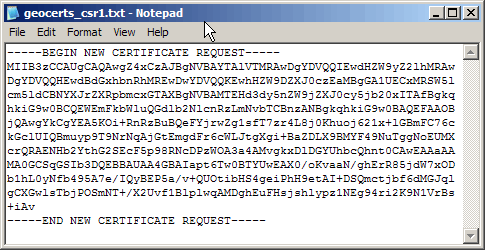
Now, from a simple text editor such as Notepad (do not use Word), open the CSR file you just
created at
c:\certreq.txt (your path/filename may be different).
You will need to copy-and-paste the contents of this file, including the top and bottom lines, into the
relevant box during the online order process.
Renewal Certificate Installation
-
Your SSL server certificate will be sent to you by email. The email message
includes the server certificate that you purchased in the body
of the email message. It will be labled "Server Certificate (public key)".
It is also downloadable from your SSL Manager
account (recommended).
Copy the certificate from the body of the email and paste
it into a simple text editor, such as Vi or Notepad (do not use MS Word).
- Save this as
yourdomain.cer on your desktop or other location.
What you name this file is not important, only that
you can find it a moment.
- Open the Internet Information Services (IIS) Manager.
From the Start button select Programs >
Administrative Tools > Internet
Information Services Manager.
- In the IIS Manager, select the main server node on the top left under Connections
- In the Features pane (the middle pane), double-click the Server
Certificates option located under the IIS or Security heading
(depending on your current group-by view).
- You will be presented with a list of SSL Server Certificates currently
installed. Select and highlight the expiring certificate that you want to renew.
Check the certificate's Expiry Date to make sure you have selected the right one.
The certificate's Issued By field should say Equifax or GeoTrust.
- From the Actions pane on the right, select Renew .
From the Renew an existing certificate dialog box choose the third
option, Complete certificate renewal request. Click Next
- From the Specify Certification Authority Response dialog box,
browse to the renewal certifiate file you saved in step 2 of this section,
yourdomain.cer.
Click Finish.
- It may take a few seconds, but if the installation was successful you will presented
with a list of SSL Server Certificates currently installed. Select and highlight the
certificate that you just renewed. Check the certificate's Expiry Date to make sure
it has updated to the new date.
- Test the install by selecting the web site under the Web Sites folder on the
left-hand Connections pane (usually listed as the Default web site). Then from the
right-hand Actions pane select Browse *.443 (https) under the Browse Web Site section.
|
CSR Legend
When generating your CSR you will be asked to input
a few pieces of info. Below are some common fields with descriptions and examples.
(also see About the CSR)
Common Name (CN)
The fully-qualified-domain name for your certificate. Examples include...
- www.domain.com
- owa.domain.net
- secure.domain.ca
- *.domain.com (for wildcard SSL)
Organization (O)
The exact legal name of your organization. Do not abbreviate your
organization's name. Example: Metro Realty LLC or Flowers by Jenny
Organizational Unit (OU)
The section or division of the organization. Example: Sales, Support, Customer Service
City or Locality (L)
The city where your organization is legally located. Cannot be
abbreviated. Example: Atlanta
State (S) or Province
The state or province where your organization is legally located. Cannot
be abbreviated.. Example: Georgia
Country (C)
The two-letter ISO Country Code abbreviation for your country. Example: US, CA, GB (must be two-letters)
Email
Any email address. This field is arbitrary but must be filled in. GeoTrust
will not use this email address to process your order. Example: user@example.com
Key Bit Length
The key bit length has to do with the initial key exchange, not the
encryption strength of your certificate. GeoTrust recommends a key bit length of 2048.
|