
Install SSL Certificate Microsoft Exchange Server 2010
In Exchange 2010 there are two ways to install your SSL certificate. Option 1 is to use the Exchange Management Console GUI (recommended) and options 2 is by using the Exchange Management Shell. We will discuss both.
Download and unzip your certificate files
Download and unzip your certificate files by clicking on the download link in your fulfillment email or from your GeoCerts SSL Manager account. You will find one .cer file that contains your domain SSL server certificate and any required intermediate CA certificates in PKCS#7 (P7B) format. Copy the file and save it on the same server you used to create the CSR.
your_domain_com.cer
Option 1: Install using Exchange Management Console GUI (recommended)
- Start the Exchange Management Shell. Click Start > Programs > Microsoft Exchange Server 2010, and then click Exchange Management Console.
- Click the link to "Manage Databases", and then go to "Server configuration".
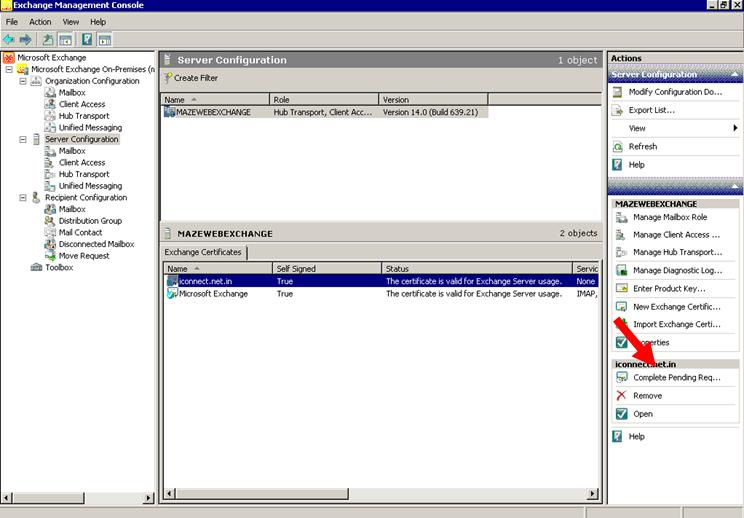
- Select your certificate from the menu in the center of the screen (The certificate will be listed by the Friendly Name you chose when creating the CSR), and then click the link in the Actions menu to "Complete Pending Request".
- Browse to the certificate file you just copied to your server, then click Open > Complete.
URGENT!! You may receive the following error: "The source data is corrupted or not properly Base64 encoded." You can ignore this error.
- Press F5 to refresh the certificate list. Verify that it says "False" under "Self Signed".
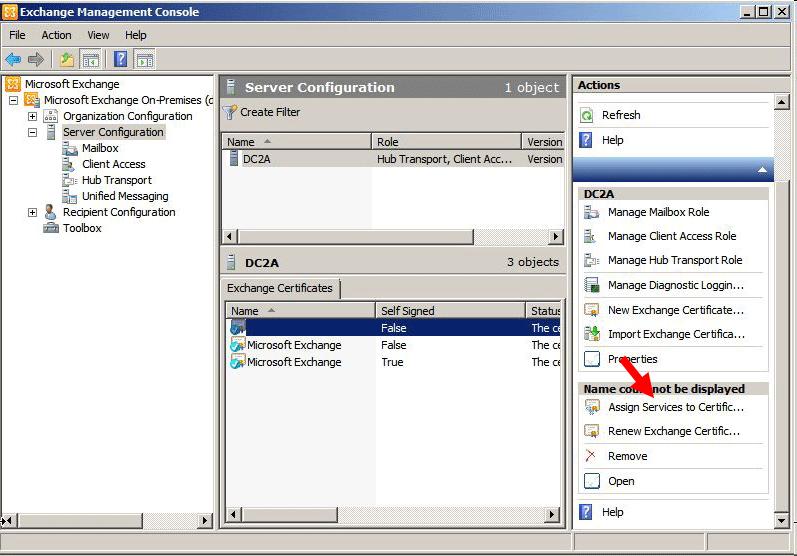
- To enable your certificate, return to the Exchange Management Console and click the link to "Assign Services to Certificate."
- Select your certificate from the list provided, then click Next.
- Select the services for which you would like to enable your new certificate, click Next > Assign > Finish. Your certificate should now be Installed and Enabled for use with Exchange.
If you are running an ISA server you will need to export the certificate keys from your Exchange Server to your ISA server. See our tutorial on Windows SSL export/import for more info. You should also reboot your ISA server after the import.
Verify Installation

Test your SSL certificate by using a browser to connect to your server. Use the https protocol directive. For example, if your SSL was issued to secure.mysite.com, enter https://secure.mysite.com into your browser.
Your browser's padlock icon 
Option 2: Install using Exchange Management Shell
- Start the Microsoft Exchange Management Shell by clicking Start > Programs > Microsoft Exchange 2010 > Exchange Management Shell.
- From the command line, type the following:
Import-ExchangeCertificate -FileData ([Byte[]]$(Get-Content -Path c:\your_domain_name.cer -Encoding byte -ReadCount 0)) | Enable-ExchangeCertificate -Services "IIS,POP,IMAP,SMTP"
NOTE: only the desired services should be specified by the Enable-ExchangeCertificate portion of the command.

To learn more about Exchange Management Shell see Security Cmdlets
If you are running an ISA server you will need to export the certificate keys from your Exchange Server to your ISA server. See our tutorial on Windows SSL export/import for more info. You should also reboot your ISA server after the import.
Verify Installation
Test your SSL certificate by using a browser to connect to your server. Use the https protocol directive. For example, if your SSL was issued to secure.mysite.com, enter https://secure.mysite.com into your browser.
Your browser's padlock icon
For IIS SSL troubleshooting, Microsoft has designed a tool - SSL Diagnostics - to aid in quickly identifying configuration problems in the IIS metabase, certificates, or certificate stores.


