Generate CSR Microsoft ISA Server
Generate a CSR using the Certificate Wizard in the Internet Information Services (IIS) web server. If your ISA Server is running on a Windows box that does not have an IIS web server, you will need to generate the CSR and install the SSL certificate from another IIS-enabled box and then export/import the certificate keys into the ISA Server box by following steps A and B here.
Follow these instructions to generate a Private Key and CSR.
- Open the Internet Information Services (IIS) Manager. From the Start button select Programs > Administrative Tools > Internet Information Services Manager.
- In IIS Manager, double-click the local computer, and then double-click the Web Sites folder.
- Right-click the Web site for which you want to request a certificate, and then click Properties. By default it will be Default Web Site, yours may be different.
- Select the Directory Security tab and click Server Certificate in the Secure communications section.
- Click Next in the Welcome to the Web Server Certificate Wizard window.
- Select Create a new certificate, Click Next.
- Select Prepare the request now, but send it later.
- At the Name and Security Settings screen, fill in the friendly name field for the new certificate
Tip: the friendly name can be any name that helps you remember what this certificate is for when you see it in a list later. We recommend using your domain as the friendly name, such as mysite.com.
- Select bit length. We recommend using a 2048-bit length (2048 is required for EV SSL). Click Next.
- Leave the 'Select cryptographic service provider (CSP) for this certificate' unchecked. Click Next.
- You will be asked for several pieces of info which will be used by GeoTrust to create your new SSL certificate. These fields include the Common Name (aka domain, FQDN), organization, country, key bit length, etc. Use the CSR Legend in the right-hand column of this page to guide you when asked for this information. The following characters should not be used when typing in your CSR input: < > ~ ! @ # $ % ^ / \ ( ) ? , &
- Enter your Organization (e.g., Gotham Books Inc) and Organizational Unit (e.g., Internet Sales). Click Next.
- THIS IS THE MOST IMPORTANT STEP! Enter your site's Common Name. The Common Name is the fully-qualified-domain name for your web site or mail server. What ever your end-user will see in their browser's address bar is what you should put in here. Do not include http:// nor https://. Refer to the CSR legend in the right-hand column of this page for examples. If this is wrong, your certificate will not work properly. Click Next.
- Enter your Geographical Information for Country, State, and City. Do not abbreviate States and Cities. Click Next.
- In the Certificate Request File Name box enter the path and file name where you want to save your CSR. You can use the default of
c:\certreq.txt. Remember where you save it, you'll need to be able to find this CSR file later. Click Next. - Review the data on the Request File Summary screen and click Next.
- Click Finish to complete the Wizard.
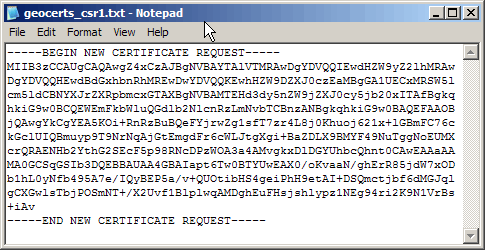
- Now, from a simple text editor such as Notepad (do not use Word), open the CSR file you just created at
c:\certreq.txt(your path/filename may be different). You will need to copy-and-paste the contents of this file, including the top and bottom lines, into the relevant box during the online order process.