
Generate CSR Microsoft Exchange Server 2010
In Exchange 2010 there are two ways to generate a CSR.
- Option 1: Using the New Exchange Certificate Wizard GUI (recommended).
- Option 2: Using the Exchange Management Shell.
Option 1: Create your CSR with the New Exchange Certificate Wizard (recommended)
- Start the Exchange Management Console by going to Start > Programs > Microsoft Exchange 2010 > Exchange Management Console.
- Click the link to Manage Databases.
- Select Server Configuration in the menu on the left, and then New Exchange Certificate from the actions menu on the right.
- When you are prompted for a Friendly Name, enter a name by which you will remember this certificate in the future. This name will not become part of the CSR Request, but will be used to identify the certificate during installation. We recommend using the FQDN followed by the current year (e.g., www.example.com-2019).
- For the Domain Scope, check the box if you will be generating the CSR for a Wildcard SSL certificate. Otherwise, just go to the next screen. If you do select the box for a wildcard, skip to step 7.
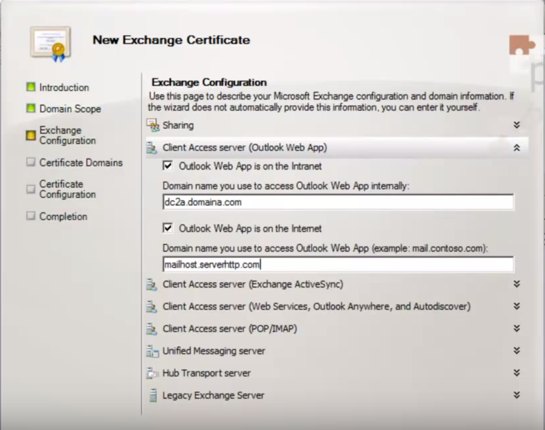
- In the Exchange Configuration menu, select the services for which you will be using your SSL certificate. Enter the names through which you connect to those services when you are prompted.
- At the next screen, you will be able to review a list of the names which Exchange 2010 suggests you include in your certificate request. You may also add additional names at this time.
- In the Organization and Location form provide the following information.
Organization: Your company’s legally registered name (e.g., YourCompany, Inc.). Organizational unit: The name of your department within the organization. This entry will usually be listed as "IT". Country/region: The country/region where your company is legally located. Use the drop-down list to select your country. City/locality: The city where your company is legally located. State/province: The state/province where your company is legally located. Do not abbreviate. (e.g., California) - Click Browse to save the CSR to your computer as a .req file. Note the name and location of the file and then Save and follow through to Finish.
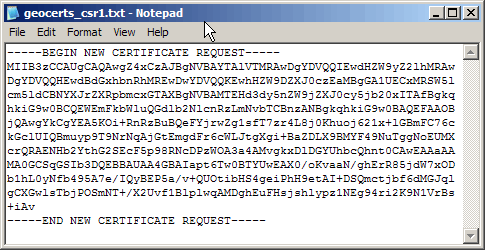
- Open the CSR text file you just created (NewRequest.req) in a simple text editor such as Notepad (do not open in Word). Below is an example of what your CSR will look like.




Option 2: Create your CSR with the Exchange Management Shell
- Start the Microsoft Exchange Management Shell by clicking Start > Programs > Microsoft Exchange 2010 > Exchange Management Shell
-
From the command line, type the following:
New-ExchangeCertificate -GenerateRequest -KeySize 2048 -SubjectName "c=US, l=City or Locality, s=State or Province, o=The Legal Name of your Organization, cn=Your_Domain.com" -PrivateKeyExportable:$trueThe
2048in the command above is the key bit length. GeoTrust recommends a key bit length of 2048.This command should be entered into the management shell as a single line without using returns until the end. Replace the details listed in this sample command with the details of your own organization.
- Type the following line immediately after generating the file:
Set-Content -path "C:\your_CSR_name.csr" -Value $Data


